

The report arrives as a PDF, or a dashboard link, or a spreadsheet with a tab for every sin. It says your site has 1,200 issues, 340 of them “critical,” and a health score of 61 out of 100. You do not know whether 61 is a disaster or a normal Tuesday, and the person who sent it is waiting for you to approve the work. This is the most common moment in technical SEO to make a bad decision, because a report that lists everything does not tell you what matters. The number of findings is a property of the tool. What you actually need is a short, ordered list of what is stopping Google from finding, reading, and keeping your pages.
You do not need an engineering degree to read a technical SEO report. You need three questions, a small glossary, and the discipline to ignore most of what the tool prints. This post gives you all three, so that the next time a report lands in your inbox you can tell the difference between a real problem and housekeeping.
What a technical SEO report is actually measuring
Every technical SEO report, whatever the brand, is answering the same chain of questions in the same order. Can a crawler reach the page? Is it allowed to keep the page? Can it understand the page once it has it? And is the page fast and stable enough that a person will stay? Those four stages map to crawlability, indexability, rendering and content, and page experience.
The reason this matters is that the stages are ordered. A page that cannot be reached will not be indexed, and a page that is not indexed cannot rank, so a slow image on that page is irrelevant until the earlier problem is fixed. Most reports sort findings by tool-assigned severity or by category, not by this chain, which is why a missing alt attribute can sit next to a server error with the same-looking warning icon.
Google’s own Page indexing report in Search Console is the closest thing to ground truth, because it lists the pages Google itself did and did not keep, with a reason for each. A third-party crawler tells you what it found when it visited your site. Search Console tells you what Google decided. When the two disagree, trust Search Console, and treat the crawler as a way to find out why.
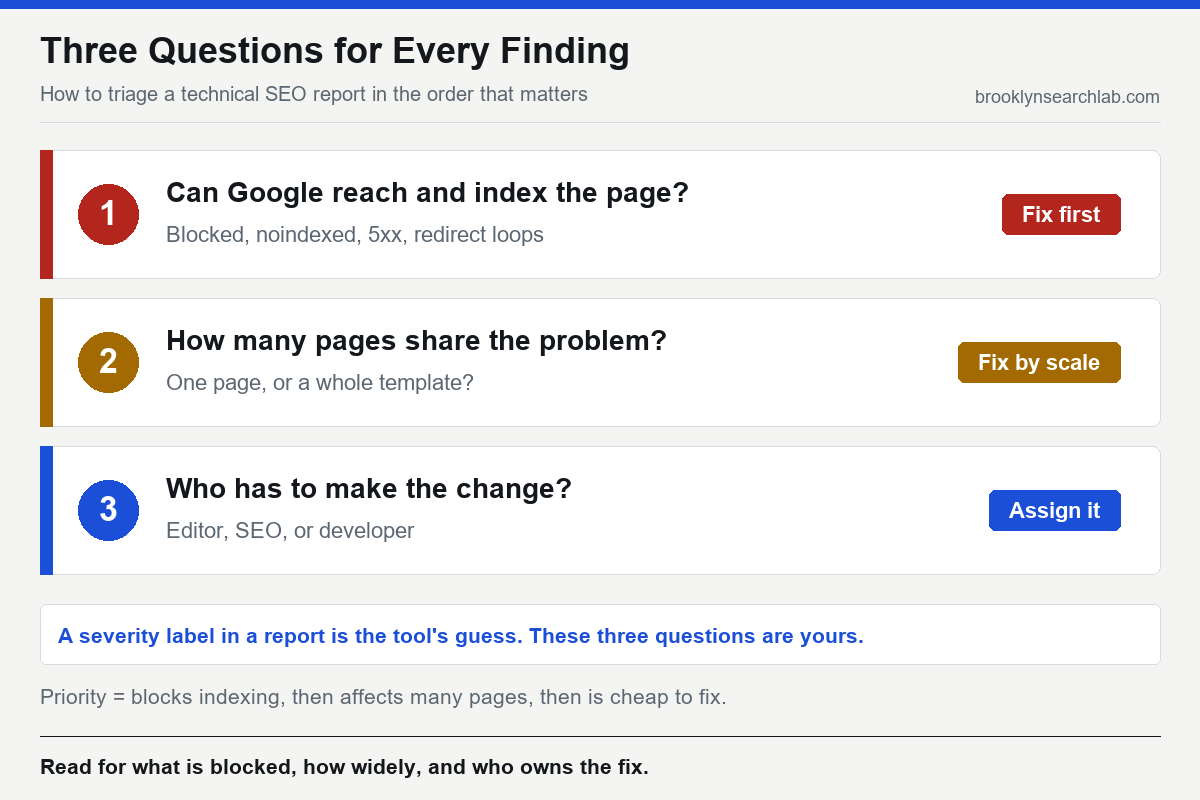
Three questions to ask of every finding
1. Can Google reach and index this page?
Start with anything that stops a page from being crawled or kept: a robots.txt rule that blocks it, a noindex directive, a redirect loop, or a server that fails when asked. Google documents how it treats each response in its guide to HTTP status codes and network errors, and the short version is that persistent 5xx errors make Google slow its crawling of your whole site, not just the broken page. Anything in this category on a page you want to rank goes to the top of the list.
The word “intent” matters here. A page blocked by robots.txt is only a problem if you wanted it crawled. Checkout pages, internal search results, and staging copies are supposed to be blocked. Before you fix a block, confirm that someone did not put it there on purpose. Google’s robots.txt introduction is a plain-language place to check what a rule does.
2. How many pages share the problem?
A finding that affects one page is an edit. A finding that affects every page built from one template is a code change that fixes hundreds of pages at once. Reports usually show a count per issue; read that column before you read the description. Two hundred product pages with the same duplicate title tag is one fix in one template, and it is worth far more than two hundred separate edits.
Scale also tells you where a problem comes from. When the same fault appears across a section, a plugin, a theme, or a deployment is almost always responsible. That is how a single canonical rule can split rankings across thousands of URLs, as we found in the canonical tag mistake that splits rankings. The report showed a modest-looking warning; the count showed the real size.
3. Who has to make the change?
Every finding has an owner, and the owner decides how long the fix takes. A title tag or a thin page belongs to whoever edits your content. A redirect map or a robots rule belongs to your SEO. A rendering problem, a slow server, or a router that returns the wrong status belongs to a developer, and a developer’s time is the scarce resource. Sorting the list by owner turns “a wall of warnings” into three short lists that can run in parallel.
Reading the jargon without panicking
Most of the alarm in a report comes from wording. Google’s index report uses careful phrases that sound worse or better than they are. “Crawled – currently not indexed,” for example, does not mean something is broken. It means Google fetched the page and decided, for now, not to keep it, which is usually a signal about quality or duplication rather than a technical fault. “Duplicate, Google chose different canonical than user” means you named one URL as the main version and Google picked another. That one deserves investigation because it is where ranking signals get split.
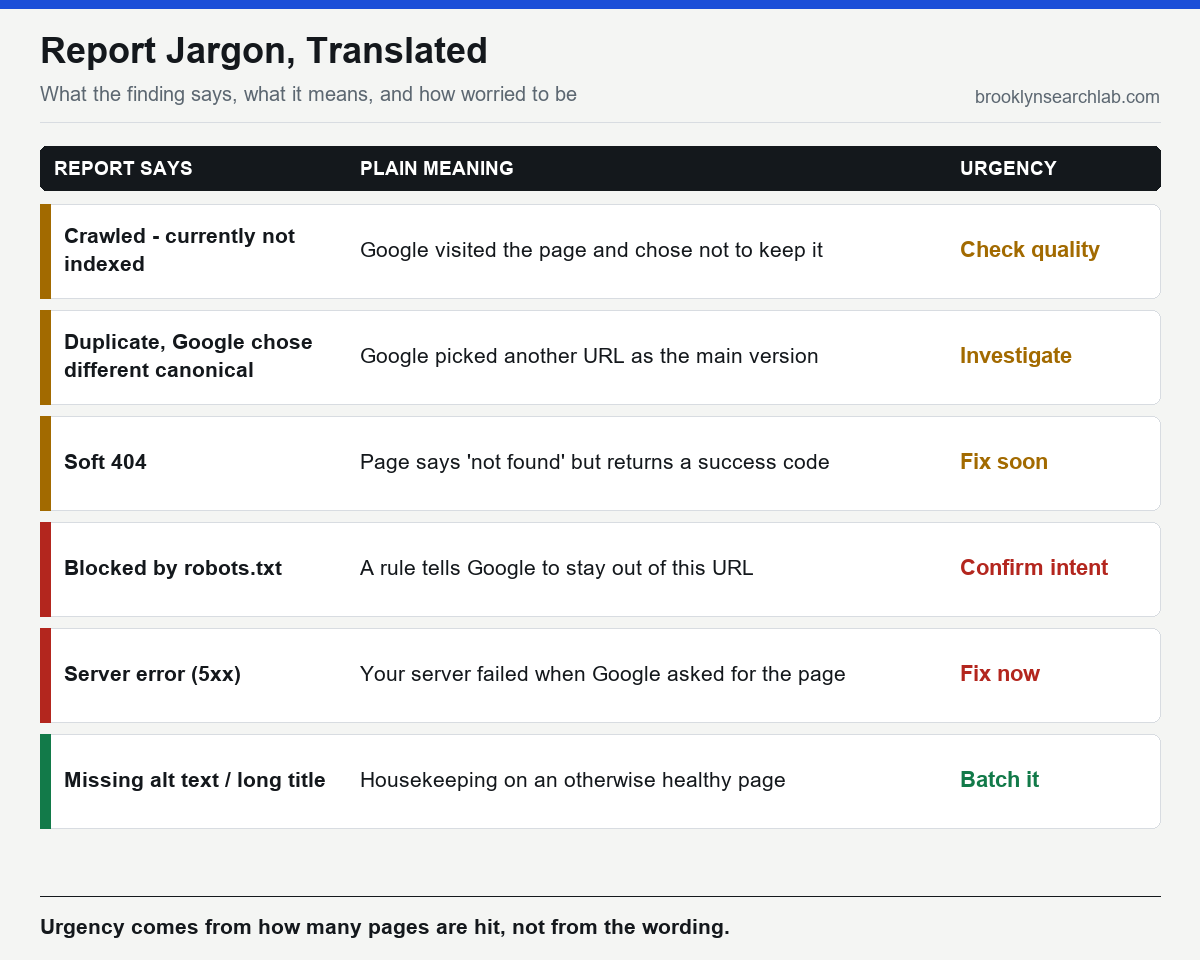
A soft 404 is a page that tells visitors “not found” while returning a success code, so Google cannot tell it is empty. Server errors are what they sound like: your server failed at the moment Google asked. And a long title tag or a missing alt attribute is housekeeping on a healthy page. It is worth batching into a tidy-up, but it should never delay the first three categories.
If a finding uses a term you do not recognize, search for the exact phrase together with “Search Console Help.” Google writes a short explanation page for nearly every status it reports, and those pages say what the status means and what Google recommends.
Lab scores, field data, and the number that does not matter
The speed section is where reports are most misleading. Many tools show a single performance score generated by loading your page once on a simulated device. That is lab data: useful for diagnosis, not a measurement of what visitors experienced. Google’s ranking systems look at Core Web Vitals measured on real users, and that field data comes from the Chrome UX Report. A page can score 45 in a lab test and still pass in the field, or the reverse.
So when a report says “performance: 58,” ask which kind of number it is. If the report also shows field data for Largest Contentful Paint, Interaction to Next Paint, and Cumulative Layout Shift, read those instead. We cover which of these actually move results in Core Web Vitals in 2026, and the same distinction applies to the “health score” on the first page of the report: a weighted average of every test the tool runs, including ones that do not affect rankings.
Why a report can look worse in New York
Large, older sites accumulate findings faster than small ones, and New York businesses tend to have layers: a rebuilt website over an old one, location pages for several boroughs, a booking system on a subdomain, a blog on another platform. Each layer adds redirects, duplicate templates, and inconsistent canonicals that a crawler dutifully reports.
The local structure matters too. A business with separate pages for SEO in Brooklyn and SEO in Manhattan is deliberately publishing near-similar templates, so “similar content” warnings on those pages deserve a second look rather than a reflex fix. The question is whether each page says something genuinely specific to its borough, not whether the tool flagged resemblance.
The strategic turn: a report is a hypothesis, not a verdict
Here is what most agencies will not say: an automated report finds symptoms, and it cannot tell you which symptoms are causing your ranking problem. A crawler has no idea which pages earn you money, which were intentionally blocked, or which are about to be retired. Two sites with an identical list of findings can need completely different work.
That is why a report should be the beginning of a conversation rather than a purchase order. Ask for the findings sorted by what blocks indexing, how many pages each affects, and who needs to fix it, with the evidence attached. We wrote about the difference in the real difference between an SEO audit and an SEO excuse: a good audit names the cause and the owner, and a weak one hands you the tool’s export. And if the cause turns out to live in the codebase, as it often does with JavaScript-rendered sites, someone has to be able to change the code. That is why we run technical SEO alongside software development rather than as separate engagements.
- The number of findings and the health score are properties of the tool, not of your site’s real risk.
- Read findings in the order Google works: reach, index, understand, then speed.
- Ask three questions of each one: does it block indexing, how many pages does it hit, and who owns the fix.
- Search Console’s Page indexing report shows what Google decided; a crawler shows what it found.
- Lab performance scores are for diagnosis; field data decides how Core Web Vitals are judged.
What to do this week
- Open Search Console’s Page indexing report and write down the top three reasons pages are not indexed, with page counts.
- In your crawler report, filter for anything involving status codes 4xx and 5xx, robots.txt blocks, and noindex, and sort by number of URLs affected.
- For each of those, ask whether the block or redirect was intentional. Mark the ones nobody can explain.
- Use the URL Inspection tool on your five most valuable pages to confirm Google can fetch and index them.
- Replace the tool’s severity labels with three columns: blocks indexing, pages affected, owner. Re-sort the list.
- Batch every housekeeping item, such as alt text, title length and meta descriptions, into one tidy-up task for later.
Common questions
What is a good technical SEO score?
There is no universal threshold. Scores are tool-specific weighted averages, so a 70 in one product may mean something different in another. Track whether the number of indexing-blocking issues falls, not whether the score reaches a target.
Which issues should I fix first?
Anything that stops important pages being crawled or indexed, such as server errors, accidental noindex tags, and unintended robots.txt blocks. After that, fix problems that affect whole templates, then the cheap ones.
Do I need to fix every warning?
No. Many warnings are advisory, and some do not apply to your situation. Fix what affects indexing and the pages that earn revenue, and schedule the rest.
How often should I run a technical SEO audit?
Run a full crawl after any redesign, migration, or platform change, and review Search Console’s indexing and Core Web Vitals reports monthly. Sites that publish or deploy frequently should crawl more often.
Why does Search Console show different numbers than my crawler?
A crawler visits URLs it can find on your site, while Google reports on URLs it has discovered from many sources and chose to process. Differences usually point to URLs that are orphaned, blocked, or considered duplicates, which is exactly where to look.
Send it over. We’ll sort the findings by what blocks indexing, how many pages each affects, and who has to fix it, and tell you which ones can wait. Get your free audit
Related: Why Your Site Ranks Page One in Search Console but Nowhere in Actual Search Results